Social media account security

Because hacking attempts and account theft have become more common, we decided to put together a practical guide to account protection. This article explains the core logic behind social media security, how to strengthen your accounts, and what habits help avoid future problems.
What should you do if you are unsure how secure your account really is? If you want to harden it in a simple four-step way, start here:
— create a new email address on Gmail and link it to the account;
— issue and link a new phone number, ideally an eSIM used only for important accounts;
— update the password and make it strong and unique for each social platform;
— enable 2FA and generate backup codes.
Secure email
The most common reason accounts get compromised is the email address connected to the profile. A secure mailbox and a higher level of privacy are the first rule of protection. We recommend using Gmail because it is not only reliable, but also one of the least problematic email providers from the social platform side. Many other mail services sometimes fail to deliver security emails at all.
It is better to stop relying on weaker or older mailboxes if they were widely used elsewhere. Create a new email and connect it to your important social accounts. If you already have a Gmail account, you can use it only if it was not publicly tied to your identity before and was not used on random secondary sites.
The less an attacker knows about you and your account, the lower the chance of a successful compromise. Do not reuse the same email across many platforms, especially on less important services where leaks are more likely. A practical rule is to keep one email for international social platforms and a different one for everything else. Also avoid linking older or weaker backup emails to your important accounts.
Secure phone number
Many users worry about situations where a SIM card is reissued, duplicated, or intercepted through operator abuse or weak internal procedures. Some stories are exaggerated, but in practice access to a phone number can still become easier for an attacker than people assume.
Privacy matters. Use a phone number in your most important accounts that nobody else knows about. A fully private number used only for critical accounts is much safer. One of the easiest approaches today is to issue an eSIM and attach it to your phone, while using that number only for major social accounts. When possible, keep that number separate from public communication and day-to-day exposure.
Strong password
This part is simple: use a combination of lowercase letters, uppercase letters, numbers, and symbols. An example of a stronger password style would be something like !KIK920tk47?
Store the password in a secure place. Avoid saving critical passwords in browsers. For higher safety, do not rely on casual storage in the phone or computer either. Write it down somewhere secure if needed. Also, do not use the same password on your email and social profiles. In the ideal setup, every important site should have its own separate password.
Two-factor authentication (2FA)
2FA is used as an extra security layer. You can enable it either through an authentication app or through a phone number. If you understand how the app works and how to preserve recovery access, using an app can be stronger. But because many users lose access through carelessness, the phone-number path is often easier for everyday use. After enabling 2FA, always generate backup codes. They help confirm access if the service glitches or SMS codes stop arriving.
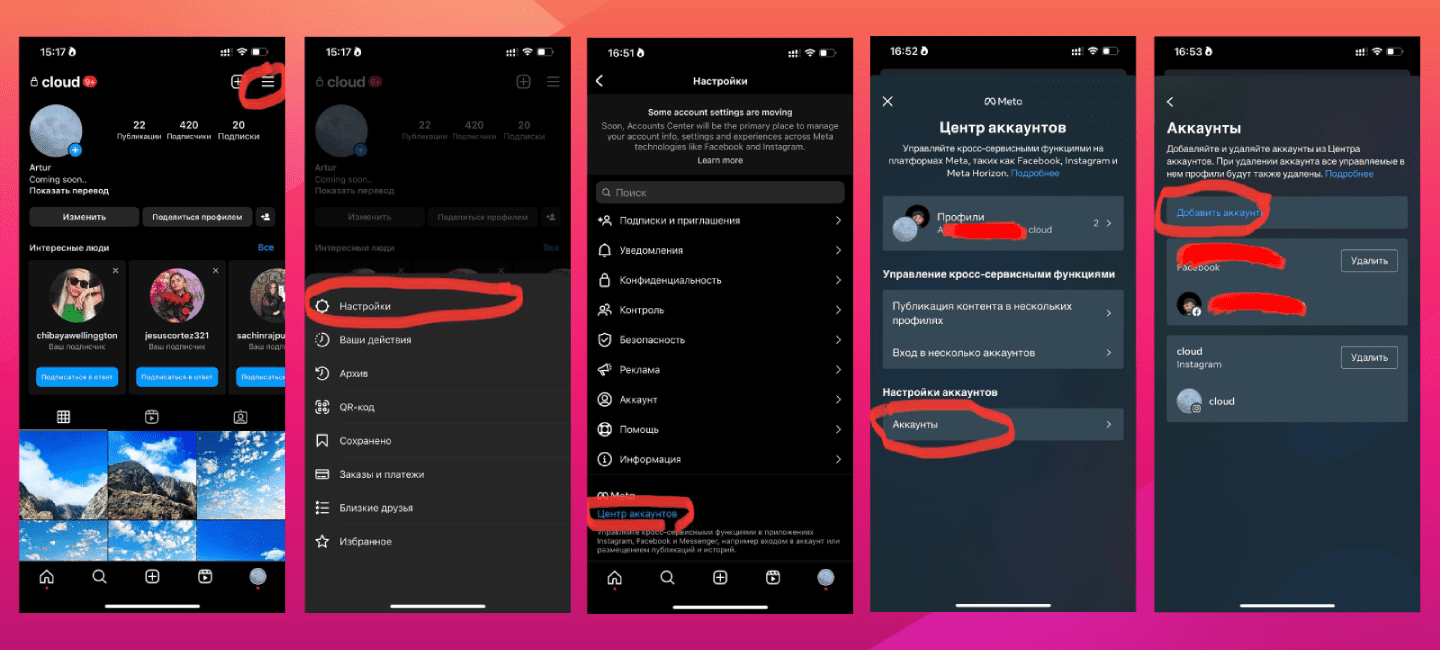
As an extra security step, link your Facebook account to your Instagram account. In some cases, a connected Facebook profile helps during Instagram recovery or when access becomes more difficult. This can be done through the Accounts Center.
Phishing
Sometimes the best security move is to do nothing. That especially applies to suspicious emails, links, popups, or messages that ask you to open another login page, install an app, or sign in somewhere unfamiliar. Do not follow links sent in DMs by people pretending to be support staff, promising verification, special status, or urgent account fixes. If a strange email arrives, carefully review the sender and whether the message really matches something happening with your account.
Do not use your passwords and data in fake growth services, shady automation tools, or unknown apps asking for account access.
Practical guide inside Instagram
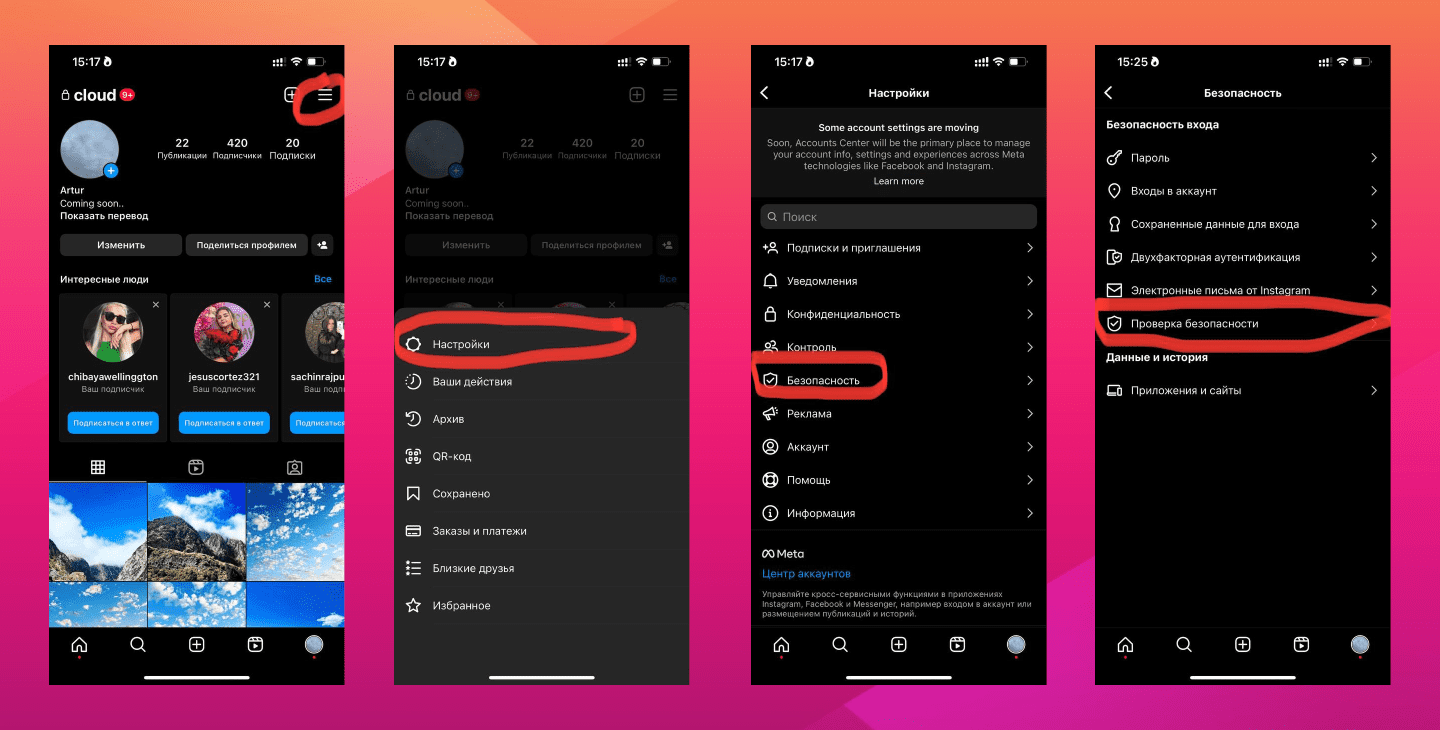
Run Instagram security check
Menu → Settings → Security → Security Check
You can open this section and follow the built-in instructions to update the email and phone number, change the password, enable 2FA, and generate backup codes.
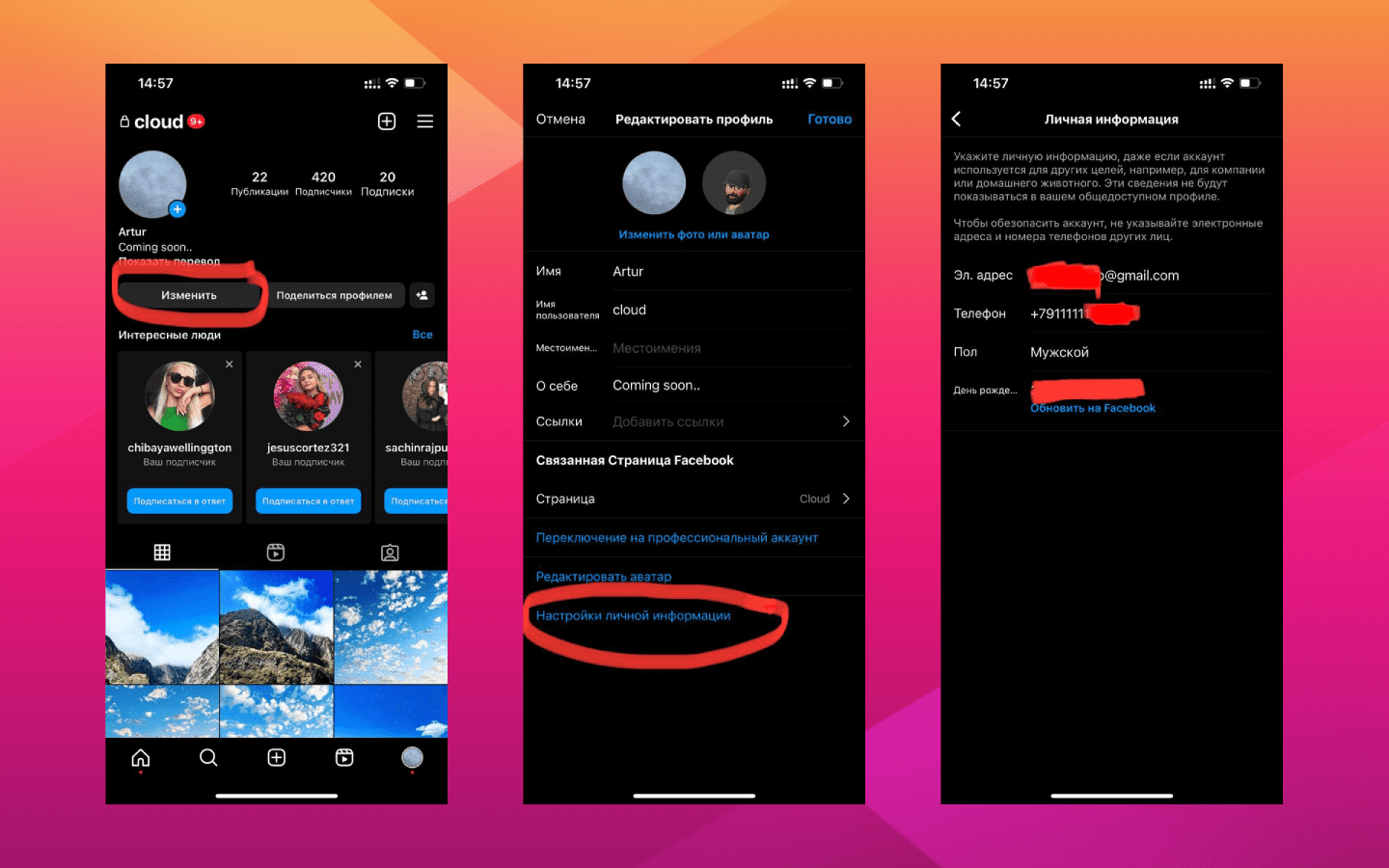
How to change email and phone number in Instagram
Edit → Personal information settings → Change email and phone number
After changing the email, you need to confirm it through the new mailbox.
After changing the phone number, Instagram may also ask you to verify it.
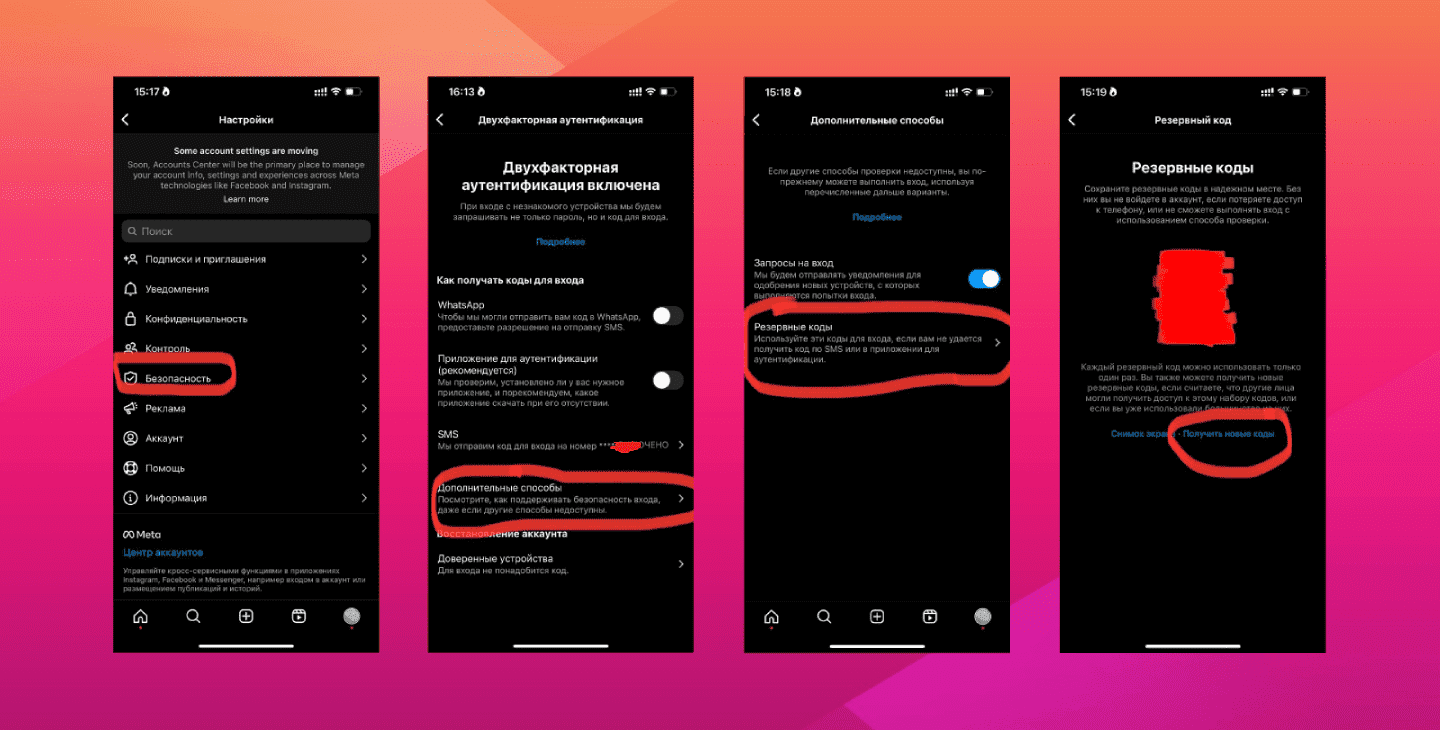
How to enable 2FA and generate backup codes
Menu → Settings → Security → Two-Factor Authentication → SMS
If 2FA was already enabled, changing the email or number can reset part of the setup, so check the security flow again afterwards.

Menu → Settings → Security → Two-Factor Authentication → Additional methods → Backup codes
If you decide not to change the number, at least generate a fresh set of backup codes.
How to connect Facebook to Instagram
Menu → Settings → Accounts Center → Accounts → Add Accounts
Common Instagram issues after security changes
Email confirmation. After linking a new email, you still need to confirm it. If you changed it through the profile settings, you should receive a confirmation letter. Open the link from that message. If the page loads forever, try opening Instagram in a browser first, sign in there, and then paste the email link into that same browser session. Another route is to use Security Check, where the email can sometimes be confirmed manually with a code sent in the message.
Password change. If Instagram asks for the old password and you no longer remember it or it does not work, recover it first. Try changing the password through Security Check. If that does not help, open Instagram in a browser and use Forgot password. An email should arrive offering a login option, and further down the message there should also be a reset-password link.
Unknown error. If you run into an unexpected error at some point, try the action again two or three times. If that does not help, wait 24 hours and try again. In many cases the problem disappears on its own later, especially if it is platform-side friction rather than a real account problem.
Additional check. Review and disconnect connected apps and websites, and also inspect account logins:
Menu → Settings → Security → Apps and Websites
Menu → Settings → Security → Login activity
Your account security is ultimately in your own hands.
Need help with the account?
If you have questions about account security, access recovery, 2FA setup, email, phone number, or hack protection, you can message us directly.
Ask in Telegram